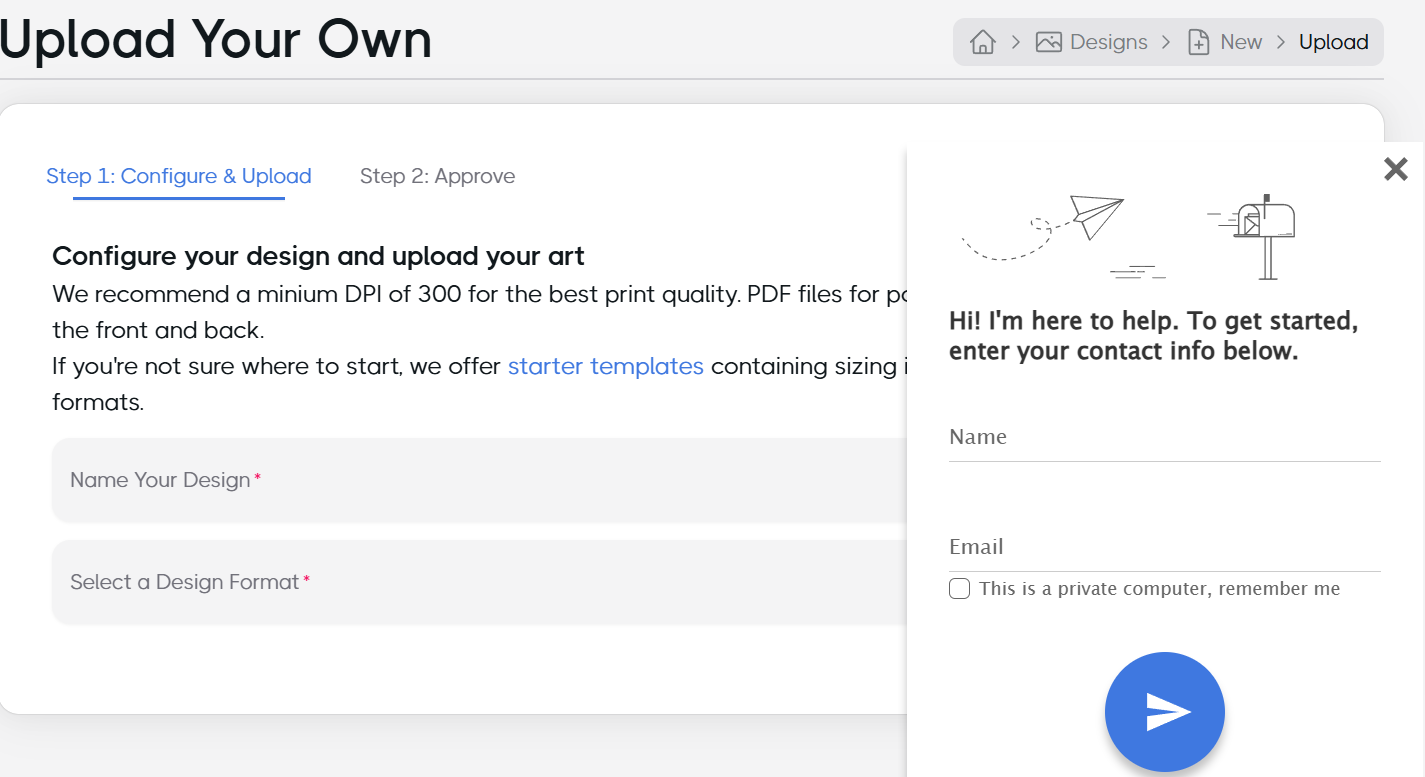
Guidlines on how to edit canva templates
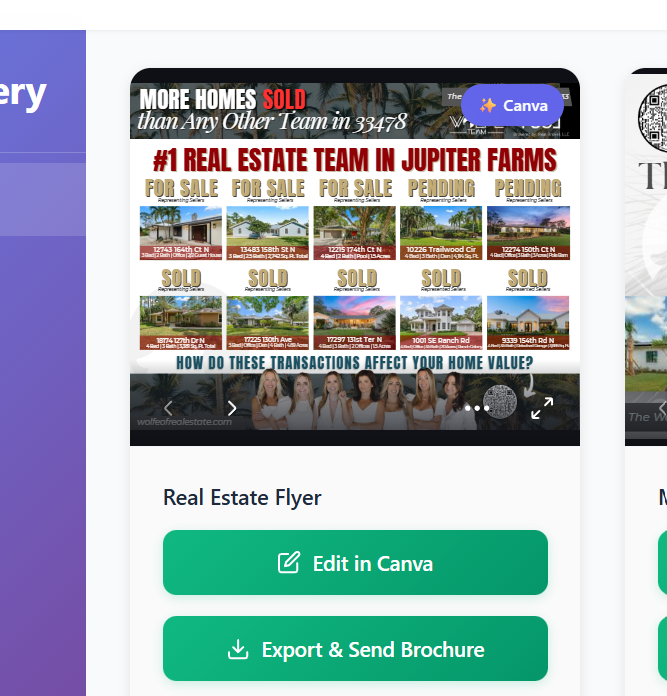
For editign a canva template, click the edit canva button. It will lead
to canva where the user can edit it.
After saving, user have to navigate back to our platform, the design
will be auto-synced within few seconds.
After that user will click on Export button that actually fetched the
export link of canva template. After confirmation from user, design can
be send by clicking on send button.
 Formatting Guidelines
The Canva templates, when exported as PDFs and sent via orders, appear
blurry because the images used are not high resolution. Below is also
the preview of the canva design sends as brochure.
Final Design
I contacted chat support and they review both the original pdf and sent
pdf . He told me that about images that they should be of high
resolution. They also mentioned that these designs are not suitable for
letters or brochures; they should be treated as postcards (6 x 8.5
inches). Additionally, they noted that the current designs are not in
the correct format. There should be a clear mailing area in the design
that does not overlap with other elements.
The designs include a front and back page, along with space for a
mailing address. Some Canva templates have 2, 3, or 4 pages, but
postcards can only use 2 pages at a time. I asked support about
the 3-page templates, and they explained that there are no designs
specifically made for letters, and the current ones won’t work well as
brochures or letters. Even if we want to use them as brochures, the
formatting is still incorrect.
Here is the link for formatting guidelines for different canva
templates including post cards , brochures and letters
How To Add/Use New Design In PCM
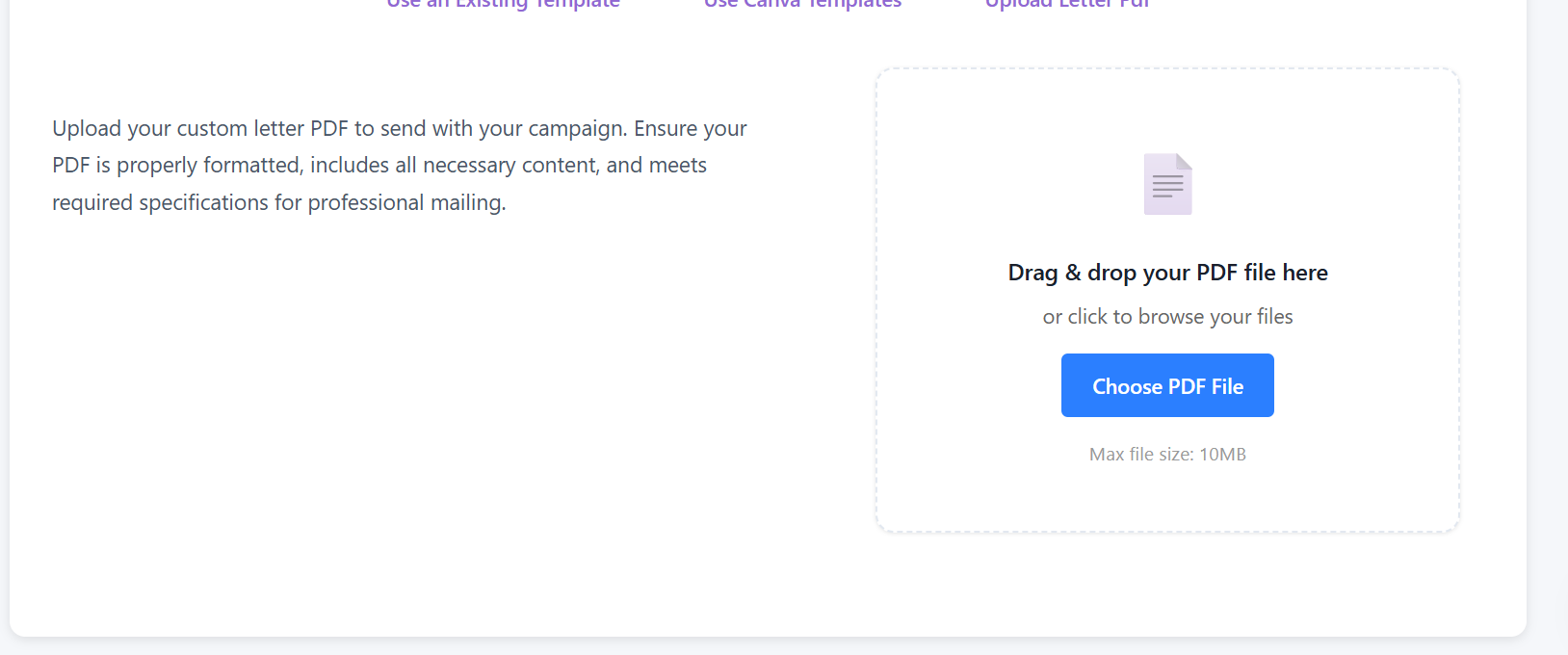
User can add new design by uploading pdf on campaign builder page. The
design in pdf should be according to pcm formatting guidelines.
How To Test/Confirm The Design Format
We can confirm and test the final design by uploading it to the PCM
portal site using the link below.
https://portal.pcmintegrations.com/designs/new/upload
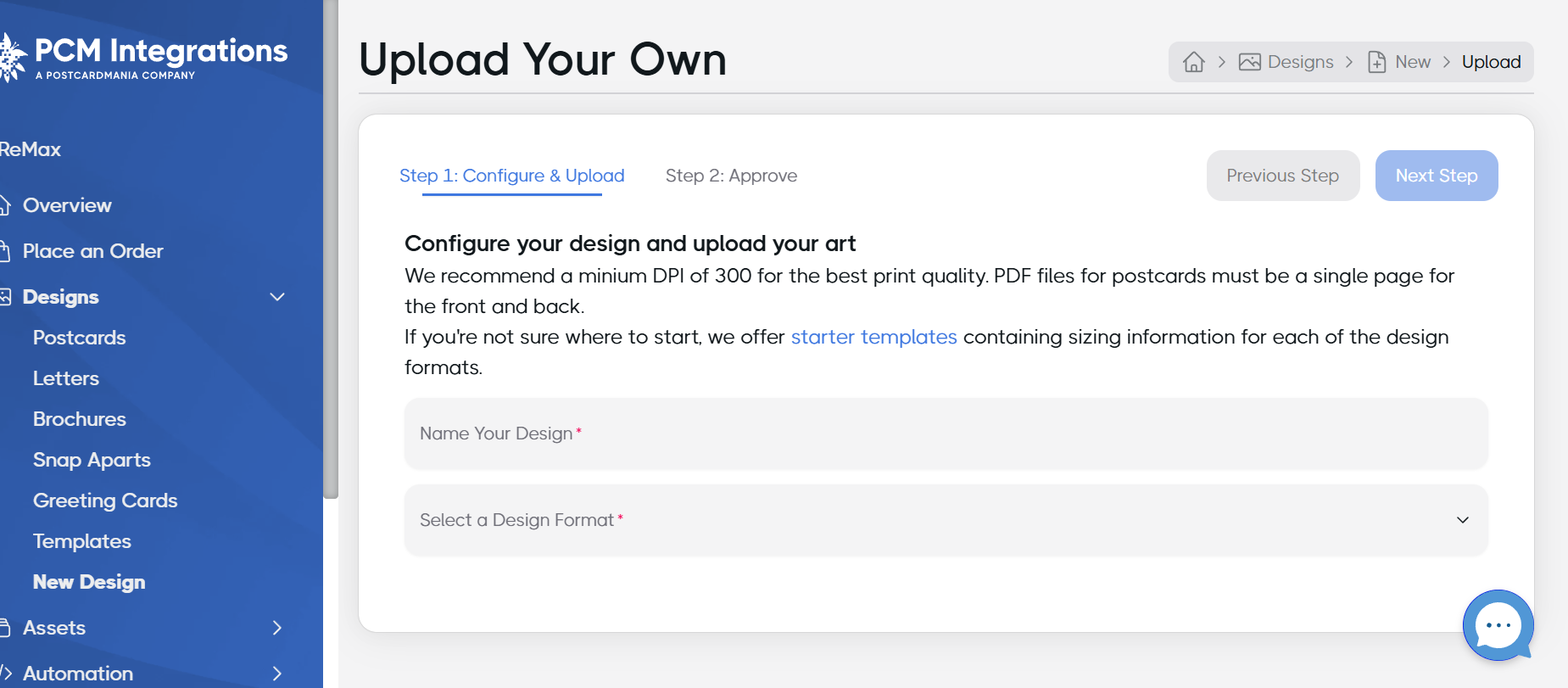 After uploading the design to the portal, we can preview the final
output there. If the design looks correct in the preview, it confirms
that the format is acceptable. Additionally, the design can also be
confirmed by contacting support.
After uploading the design to the portal, we can preview the final
output there. If the design looks correct in the preview, it confirms
that the format is acceptable. Additionally, the design can also be
confirmed by contacting support.
We can initiate a chat with the support
team, inform them that we want to verify the design format for a
brochure or postcard, and share the PDF file with them. They will review
the file and provide feedback, including whether any formatting changes
are needed or if there are any issues.